
The new Amazon Seller Central is now the only Seller Central for most sellers. Amazon has rebuilt the dashboard around workspaces, moved core tools into new places, and is removing the option to switch back to the Classic view. If you have spent ten minutes hunting for Business Reports or Manage Inventory, you are not alone. This guide shows where the main tools moved in the new Amazon Seller Central, the fastest ways to find anything, and what to set up so the change costs you less time.
Quick Answer
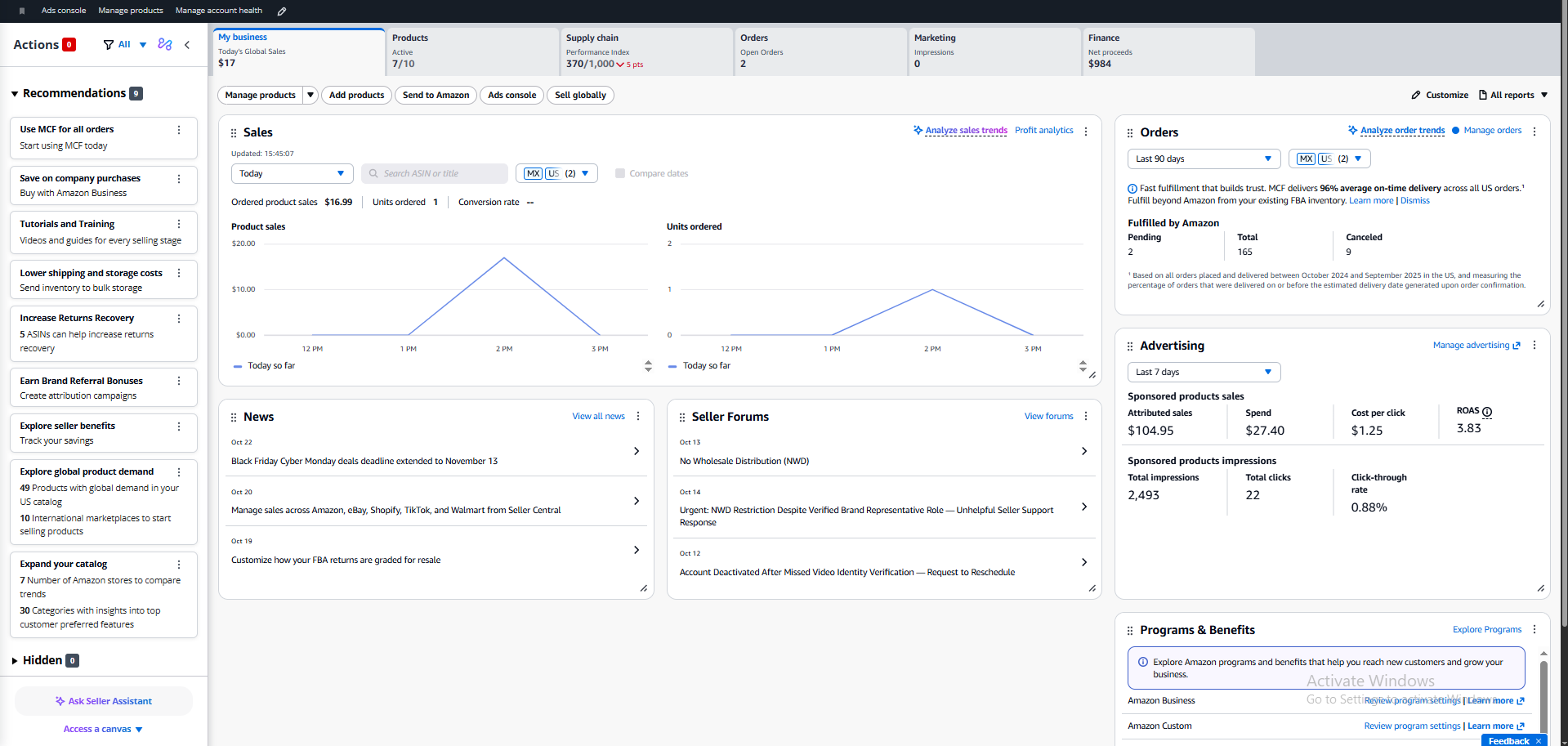
Amazon reorganized Seller Central into workspaces such as Products, Supply chain, Orders, Marketing, and Finance, with Account Health always visible. Manage Inventory and shipments moved to Supply chain, A+ Content to Products, Brand Analytics, ads, and promotions to Marketing, and payments to Finance. The Classic view is being removed. The fastest way to find anything is the search bar, the Site Map, and Amazon’s “Where to find your tools in the new Seller Central” page.
What Changed
Amazon introduced the redesign as the biggest Seller Central upgrade in a decade, built around workspaces instead of the old top menus (Seller Labs). The new layout adds Seller Assistant on every page, a home dashboard of modules you can rearrange, a cross-marketplace view, a feedback button on each page, and tooltips that point familiar tools to their new homes.
Sellers can no longer set the old view as their default, and Amazon has told sellers the Classic option is being removed. Plan as if the new layout is permanent, because it is.
Where Your Tools Moved
Locations below are where independent seller walkthroughs agree, including Seller Labs. Amazon is still rolling the change out, so labels can differ slightly by account.
| Tool | Old location | New location |
|---|---|---|
| Manage Inventory | Inventory | Supply chain |
| Send to Amazon / shipments | Inventory > Manage FBA Shipments | Supply chain > Manage shipments |
| A+ Content | Advertising or Growth menu | Products > Manage products |
| Brand Analytics | Brands or Advertising menu | Marketing |
| Advertising console | Advertising | Marketing |
| Coupons and promotions | Advertising or Growth menu | Marketing > promotions and deals |
| Payments | Reports > Payments | Finance |
| Account Health | Performance > Account Health | Always visible in its own area of the top navigation |
| Business Reports | Reports > Business Reports | All reports on the home dashboard, or search |
| Vine | Advertising or Brands menu | Marketing |
The Fastest Ways to Find Anything
- Use the search bar first. Type the old tool name. It is faster than clicking through workspaces, and it works for tools Amazon removed from the main menu.
- Open the Site Map. Less-used tools that left the main menu are listed there.
- Use Amazon’s tool finder. Amazon publishes a “Where to find your tools in the new Seller Central” page that maps old tools to new locations.
- Follow the tooltips. Hover hints point from familiar names to new homes for the first weeks after the switch.
- Ask Seller Assistant. It sits on every page and can take you to a tool or pull the data directly. Our posts on Seller Assistant Workflows and Canvas cover what it can do.
What to Set Up This Week
- Rebuild your bookmarks. Save the new URLs for the five pages you use daily, and use search for the rest.
- Arrange the home dashboard. Put the modules you check every morning (sales, inventory alerts, account health) at the top.
- Update your team’s SOPs. Any written process that says “go to Inventory, then” is now wrong. Fix it before a VA misses a task.
- Check your reports. If you rely on Business Reports, rebuild the path to them now and expect further changes. On the ads side, legacy reports retire by December 31, 2026, as covered in our unified Campaign Manager guide.
- Send feedback. Each page has a Provide feedback button,. Specific, concrete complaints are the most useful kind.
Related Reading
Frequently Asked Questions
Can I switch back to the old Seller Central?
No. Sellers can no longer set the Classic view as their default, and Amazon has told sellers the Classic option is being removed.
Where are Business Reports in the new Seller Central?
Business Reports are no longer in the main menu. Open them through the All reports button on the home dashboard, or type Business Reports into the search bar.
Where did Manage Inventory go?
Manage Inventory moved to the Supply chain workspace, along with shipments and Send to Amazon.
See our services, our Amazon PPC management, and our client results.
Sources: Seller Labs, navigating the new Seller Central.
Written by the AMZ Scaler Team
Amazon advertising and listing specialists with 5+ years managing PPC and listing optimization for brands across the US, UK, and Canada. We publish what we apply in real seller accounts every day.
More in Amazon News & Trends
- Amazon Importer of Record Rules Are Changing: What Foreign Sellers Should Do Now →
- Amazon FBA Partial Refunds Now Work by Return Reason: How to Set Them Up →
- How to Connect Claude to Amazon Ads With the Amazon Ads MCP Server →
- Amazon FBA Fee Changes 2027: What Rises on January 15 and How to Reset Your Bids →